
Showing posts with label jEdit. Show all posts
Showing posts with label jEdit. Show all posts
Wednesday, 11 September 2013
Macro and Console Commando Files for jEdit
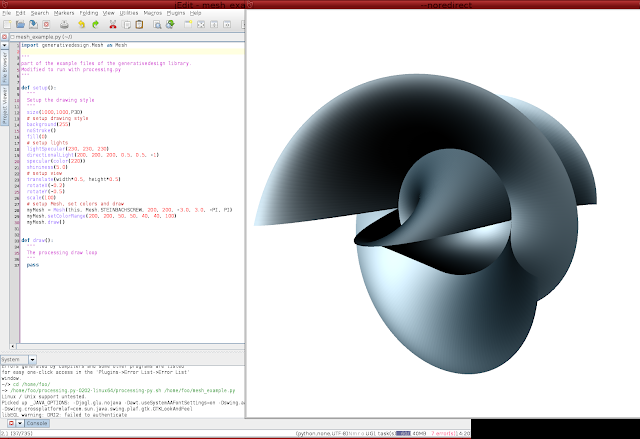
Now you can use jEdit as your ide for processing.py development get the macro and commando files here and here. In my previous posts I included use of a range of processing libraries (toxi, generative design etc). Jonathan Feinberg wouldn't touch them with a barge pole being vehemently anti GPL. However he has made it relatively easy to use the contributed libraries just copy them to processing.py libraries folder (pity he couldn't pick them up from where they get installed by regular processing as we do in ruby-processing). Proof that it all works here for code see previous posting or get it from github here:-

Saturday, 24 November 2012
Processing.py from jEdit
I have revisited my jEdit tools for processing.py and greatly simplified them.
There is a commando file that will run the processing.py sketch PYP5.xml that is currently being edited, and a couple of bsh macros PYP5.bsh and NEW_PYP5.bsh that run the commando file or create a new processing.py sketch. The NEW_PYP5.bsh relies on you having processing.py shortcuts in your abbrevs file. Currently I've made these resources available as a gist and as download.
Use the abbrevs file to modify an existing abbrevs file in the .jedit folder, edit as you wish. Put the macros in .jedit/macros folder and the PYP5.xml in .jedit/console/commando folder (you will of course needed to install the jEdit console plugin).
Using the Macros
Once installed you will find you can access the macros via the jEdit menu-bar, or a shortcut key if you wish. The sketch path is picked up form the displayed buffer (so any new sketch should be saved). You need only set the path to java and path to the processing.py jar once as they will be "remembered" in subsequent runs, easy peasy. Click on the Commands tab to see what options are included on the command line (modify the PYP5.xml commando file if you need to send args at runtime).
Since updated here.
Use the abbrevs file to modify an existing abbrevs file in the .jedit folder, edit as you wish. Put the macros in .jedit/macros folder and the PYP5.xml in .jedit/console/commando folder (you will of course needed to install the jEdit console plugin).
Using the Macros
Once installed you will find you can access the macros via the jEdit menu-bar, or a shortcut key if you wish. The sketch path is picked up form the displayed buffer (so any new sketch should be saved). You need only set the path to java and path to the processing.py jar once as they will be "remembered" in subsequent runs, easy peasy. Click on the Commands tab to see what options are included on the command line (modify the PYP5.xml commando file if you need to send args at runtime).
 |
| The PYP5 commando dialog box (loaded by PYP5.bsh macro) |
Since updated here.
 |
| Running processing.py from jedit (pre processing-2.0b7 core.jar) |
Subscribe to:
Posts (Atom)